Multiple ROI Mode
The multiple ROI mode enables you to define between to 2 to 16 regions of interest (ROI) that will be combined as one output image, instead of the single ROI area possible when specifying width, height and offsets. Using multiple ROIs lowers the transfer bandwidth requirements; additionally, any reduction of the number of vertical lines output will result in a greater camera frame rate. This frame rate increase (written to internal memory) is similar to using the vertical crop feature.
Multiple ROI Mode is device-dependent. It is part of the Image Format Controls category of features.
When to use Multiple ROI Mode
To focus processing on multiple unconnected regions of an image when bandwidth requirement can be a factor.
Usage details and Constraints
-
Cannot be used concurrently with binning.
-
Between 2 and 16 ROI areas are supported, with up to 4 regions on the X-axis (e.g., 1x16, 2x8, 3x5 or 4x4 ROIs).
-
For any selected ROI, the Offset X/Offset Y features define the upper left corner of the ROI.
-
Offset, Width, and Height features have individual increment values (step size).
-
The first ROI of any row sets the height value for any other ROI in that row.
-
The first ROI of any column sets the width value of any other ROI in that column.
The Nano-10G firmware by default provides a 4x4 sample multi-ROI setup for easy verification of this function.
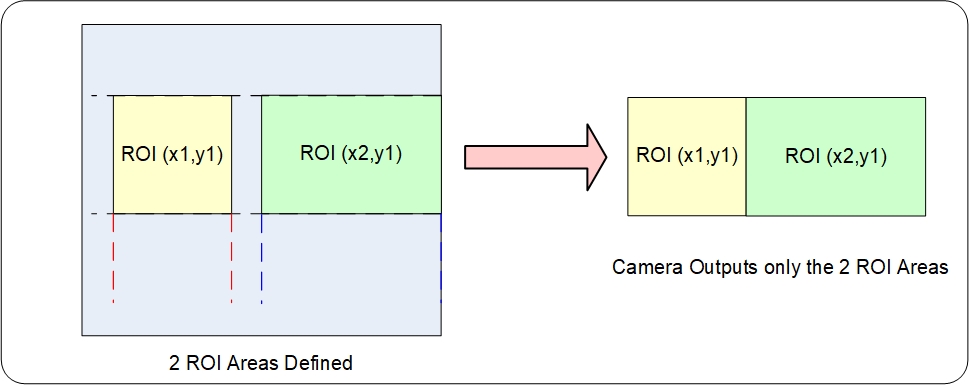
Example: Two ROIs (2x1)
-
ROI(x1, y1) defines the height of any ROI in that row.
-
ROI(x2, y1) can have a different width.
-
The camera output image frame consists only of the two ROI areas. The user must account for the change between ROI data for each output image row.
-
The smaller output image reduces the bandwidth requirements.
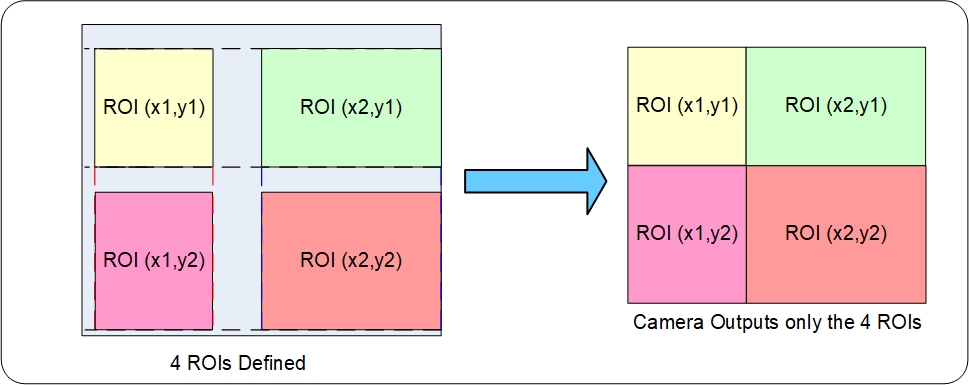
Example: 4 ROIs (2x2)
-
ROI(x1, y1) defines the height of any ROI in that row.
-
ROI(x2, y1) can have a different width.
-
ROI(x1, y2) can have a different height relative to ROI(x1,y1).
-
The camera output image frame consists only of the 4 ROI areas, in the same order as the ROI rows and columns. The user must account for the change between ROI data for each output image row.
-
The smaller output image reduces the bandwidth requirements.
How to Define Multiple ROIs
To define multiple ROIs
-
Set Multiple ROI Mode to Active.
-
Set the number of ROIs to define horizontally and vertically using the ROI Count Horizontal and ROI Count Vertical features.
-
For each of the ROI do:
-
Select the ROI to define using the ROI Selector.
-
Set the ROI Offset X, ROI Offset Y, ROI Width and ROI Height features.
-
Example
This example describes the problem of solder inspection of certain components on a PCB. The image below shows 6 ROI areas highlighted by the yellow overlay graphics (manually added).
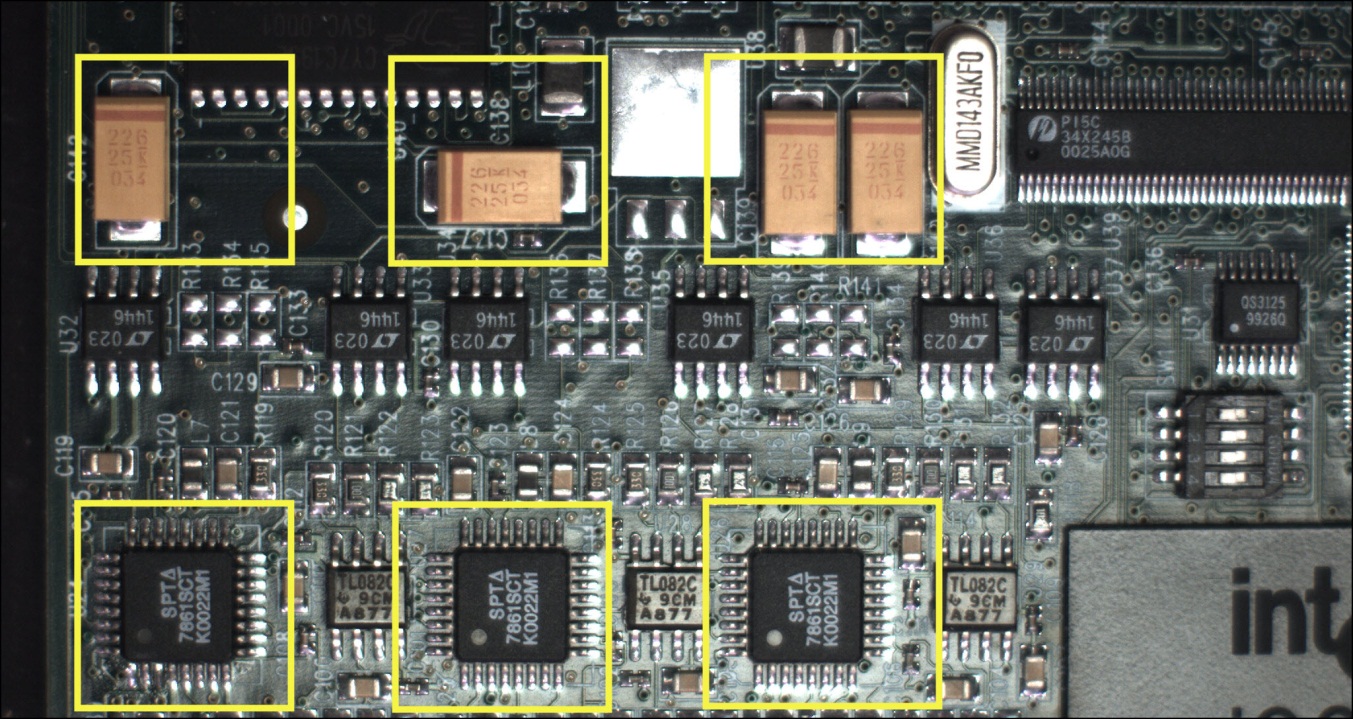
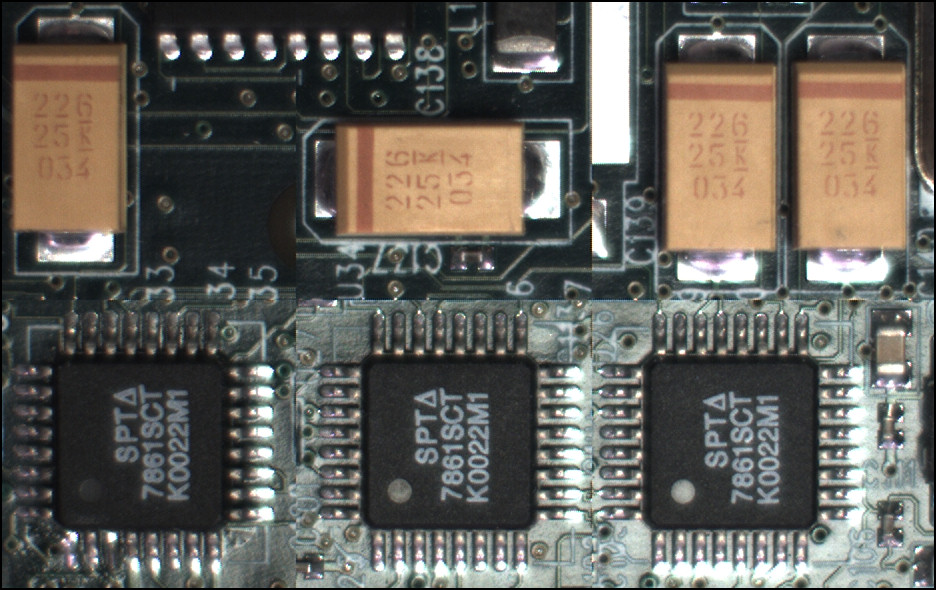
With the ROI areas defined, the camera outputs an image consisting only of data within those ROI areas, as shown below. Such data reduction improves transfer bandwidth and reduces image processing time for the host system imaging application.
 ©
©