Using CamExpert with GigE Cameras
The Sapera CamExpert tool is the interfacing tool for GigE Vision cameras and is supported by the Sapera library and hardware. CamExpert allows a user to test camera settings and functions. Additionally, CamExpert saves the Nano-10G user settings configuration to the camera or saves multiple configurations as individual camera parameter files on the host system (*.ccf).
An important component of CamExpert is its live acquisition display window, which allows immediate verification of timing or control parameters without the need to run a separate acquisition program.
CamExpert Panes
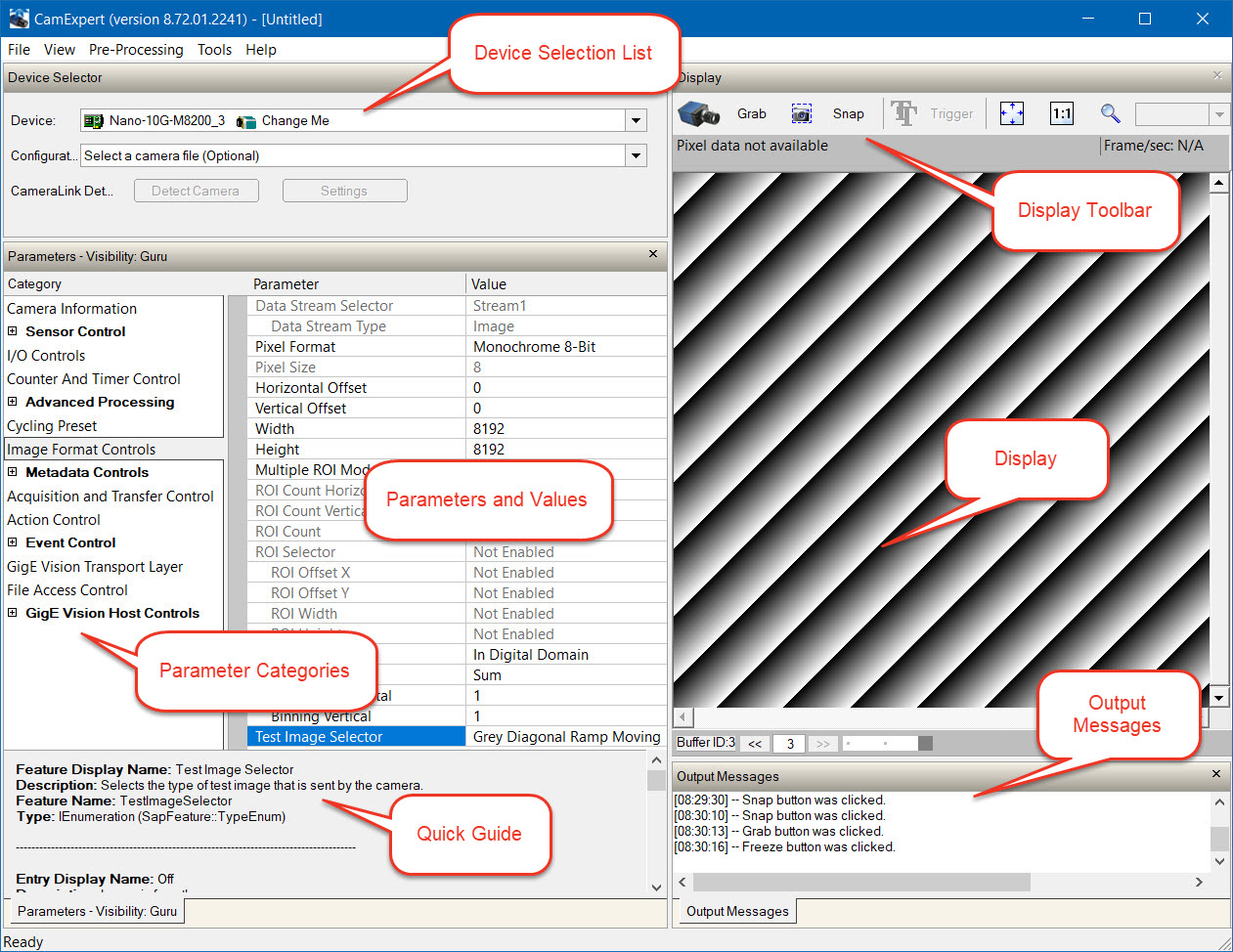
The various areas of the CamExpert tool are described in the summary figure below. The categories and parameters (features) supported by the device are shown in the Parameters pane. The number of parameters shown is dependent on the View mode selected (Beginner, Expert, Guru – see below).
-
Device Selector pane: Lists all installed GigE Vision or Sapera acquisition devices.
-
Parameters pane: Allows viewing or changing the acquisition parameters that are supported by the acquisition device.
-
Output Messages pane: Displays messages from CamExpert or from the GigE Vision driver.
-
Display pane: Provides a live or single frame acquisition display. Frame buffer parameters are shown in an information bar above the image window. The Display pane includes CamExpert control buttons.
|
|
Acquisition control Click once to start a live grab, click again to stop. |
|
|
Single frame grab Click to acquire one frame from the device. |
|
|
Software trigger With the I/O control parameters set to Trigger Mode = On for a single or multiframe trigger start, click to send a single software trigger command. |
|
|
CamExpert display controls Select Fit Display to Screen, Reset Display to 1:1 Ratio or Advanced Display Options to change image display. Note that under certain combinations of image resolution, acquisition frame rate, and host computer speed, the CamExpert screen display may not update completely due to the host CPU running at near 100%. This does not affect the acquisition. (Note that these do not modify the frame buffer data) |
|
|
Histogram / Profile tool Select to view a histogram or line/column profile, even during live acquisition. |

CamExpert View Parameters Option
All camera features have a Visibility attribute which defines their requirement or complexity level. The levels vary from Beginner (features required for basic operation of the device) to Guru (optional features required only for complex operations).
CamExpert presents camera features based on their visibility attribute and provides quick Visibility level selection via controls below each Category Parameter list [ << Less More>> ]. The user can also choose the Visibility level from the options in menu View > Parameters Options > Visibility.
 ©
©