GigE Server Status
Once the Genie Nano 10G is assigned an IP address (its Status LED is steady blue) the GigE server icon will indicate that the device was found. It might take a few seconds for the GigE Server to refresh its state after the Nano 10G has obtained an IP address.
Right-click the GigE Server icon to open the following menu.

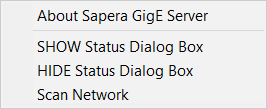
Select SHOW Status Dialog Box to open the GigE Vision Device Status window, listing all devices connected to the host system. Each GigE device is listed by name along with important information such as the assigned IP address and device MAC address. The screen shot below shows a connected Genie Nano device with no networking problems.

If the device is physically connected but the Sapera GigE Server icon indicates that the connected device is not recognized, click Scan Network to restart the discovery process. Note that the GigE server periodically scans the network to refresh its state. See Troubleshooting for network problems.
 ©
©