Quick Test with CamExpert (Windows)
-
Open Sapera CamExpert by double-clicking the desktop icon created during installation.
-
Open the Device list on the left side and select the Nano 10G camera (by default, the Nano 10G camera is identified by its serial number). The Nano 10G status LED will turn green, indicating the CamExpert application is now connected.
-
If the Nano 10G has a lens, click Grab on the Display pane toolbar for live acquisition (the Nano 10G default is Free Running mode). Focus and adjust the lens iris. See section Operational Reference for information on CamExpert parameters with the Nano 10G camera.
-
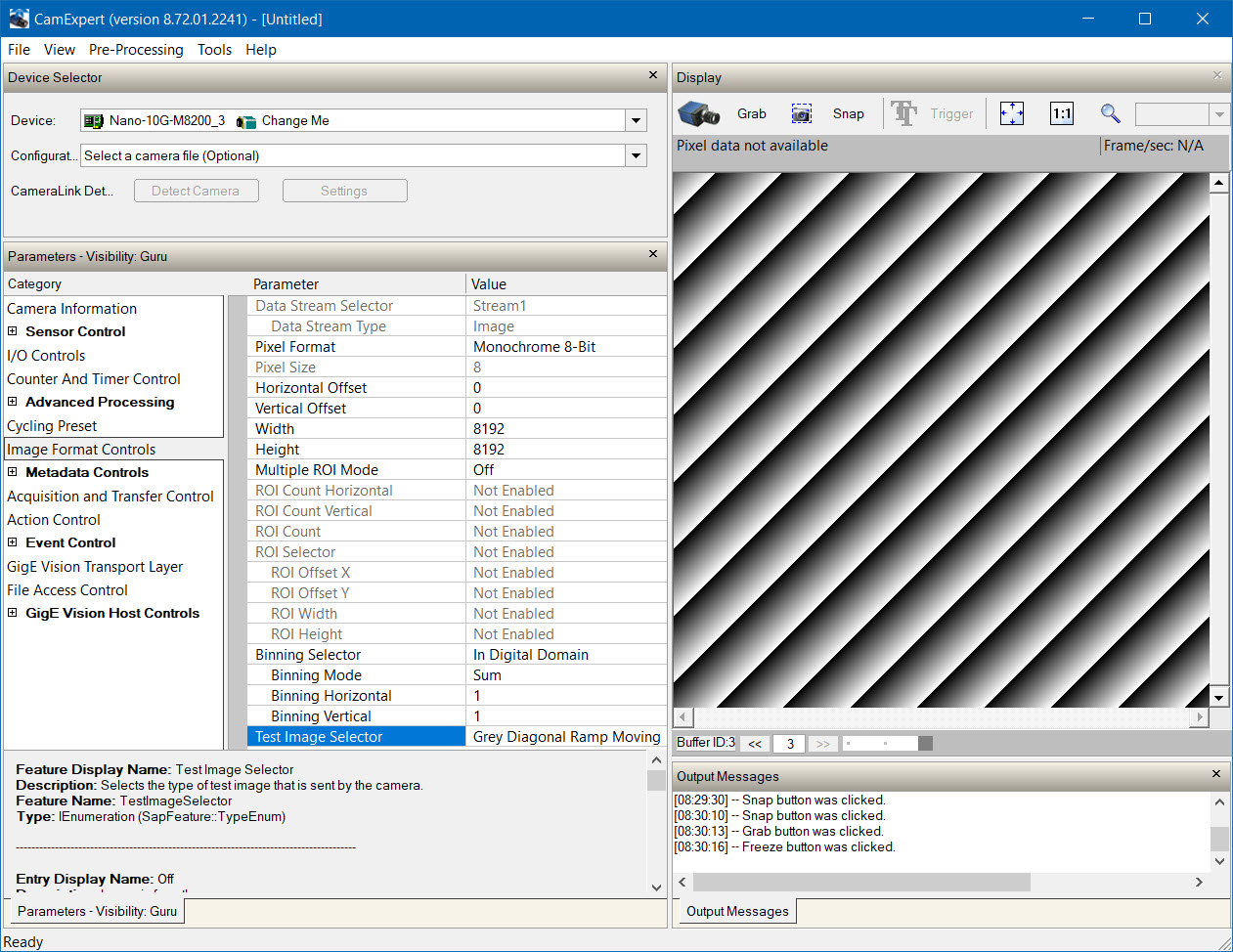
If the Nano 10G has no lens, select one of the internal test patterns available (Image Format Controls > Test Image Selector) to use with the Snap or Grab command of CamExpert. The moving test image is a shifting diagonal ramp pattern, which is useful for testing network/computer bandwidth issues (see image below).
 ©
©